Licensing Strategy Settings
Chronom reviews every licensed Microsoft 365 user and recommends a cheaper license when one would serve them. Each recommendation is based on the user's actual usage, their data, and the licensing patterns your organization already follows.
The Licensing Strategy settings let you add your own policy on top. For example:
- "Never remove a security feature, even an unused one."
- "Never move anyone off Microsoft 365 E7."
- "Move E5 users to F3 + F5 Security."
Chronom enforces these settings in every recommendation. If you leave everything at its default, Chronom recommends based on usage and your organization's licensing patterns.
Quick start
- In Chronom, go to Settings > General and scroll to Licensing Strategy.
- Set only what you need. Every setting is optional. The settings apply to every Microsoft 365 tenant in your organization.
- Click Save Changes. You need Org Admin permission to save.
- Your settings apply from the next Microsoft 365 assessment. Until then, Home and Inventory show the previous recommendations (see What you see). Saving doesn't change any license in Microsoft 365.
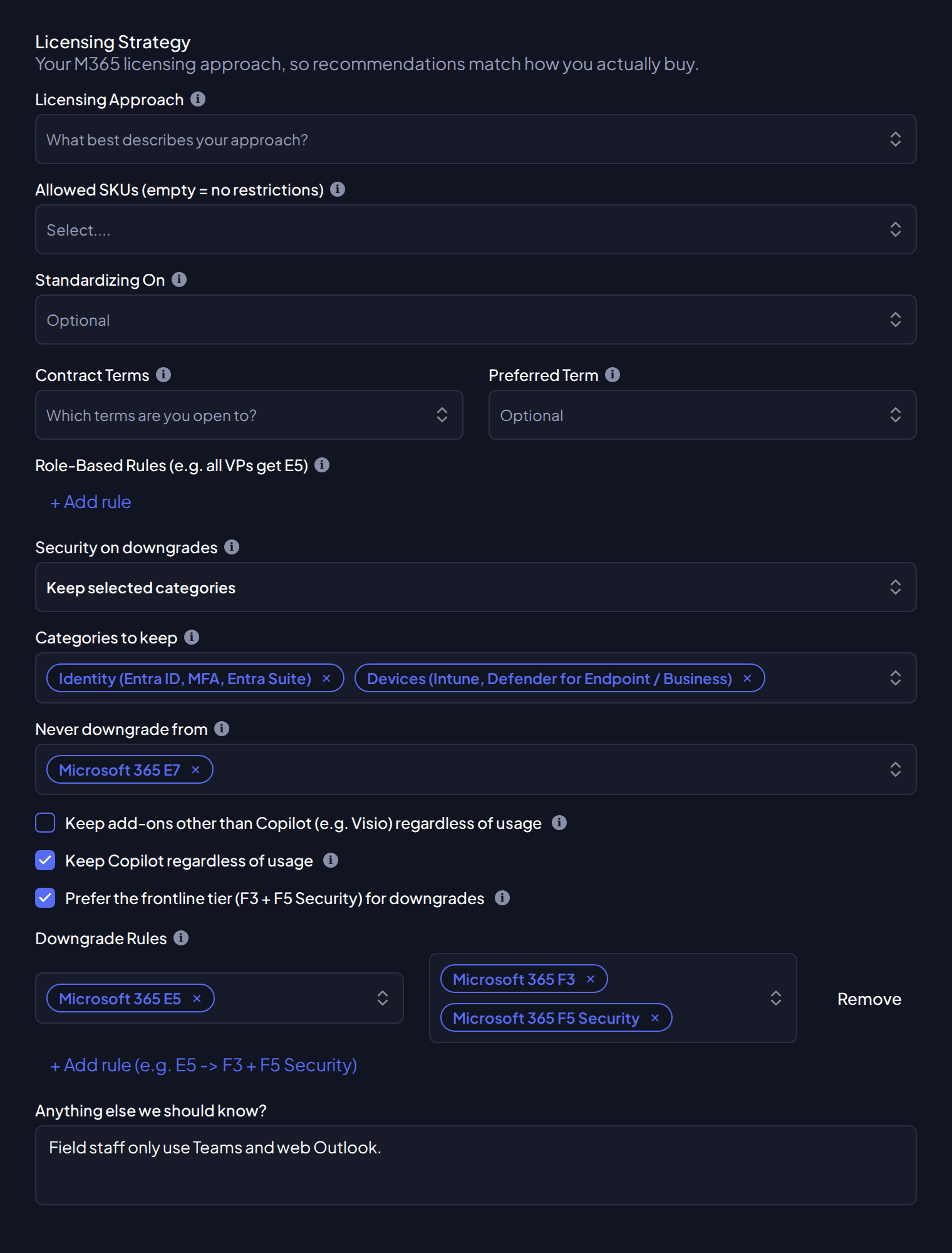
This example tells Chronom to:
- keep every identity and device security feature, even unused ones;
- never move a user off Microsoft 365 E7;
- never remove Copilot because it looks unused;
- prefer the frontline tier when downgrading;
- move Microsoft 365 E5 users to Microsoft 365 F3 + Microsoft 365 F5 Security.
Save Changes saves the section exactly as shown. To remove a rule, delete its row and save. A downgrade rule needs both a From and a To license, and a role-based rule needs both a role and a license. A row missing either is dropped when you save, with no warning.
What Chronom can recommend
Chronom moves a user only to:
- a license combination your organization already assigns to other users;
- a lower edition of the user's own suite, for example E5 → E3 or F3 → F1;
- either of the above plus an add-on that gives back a feature the user keeps;
- Visio Plan 1 in place of Visio Plan 2.
It doesn't pick new licenses from Microsoft's catalog on its own. To move users to a license you don't use yet, add a downgrade rule.
Chronom uses your organization's own license prices where it has them, and Microsoft list prices otherwise.
The settings
| Setting | Default |
|---|---|
| Licensing Approach, Standardizing On, Contract Terms, Preferred Term | Empty |
| Allowed SKUs | Empty (no restrictions) |
| Role-Based Rules | None |
| Security on downgrades | Keep features with evidence of use |
| Categories to keep | None (shown only with "Keep selected categories") |
| Never downgrade from | None |
| Keep add-ons other than Copilot regardless of usage | Off |
| Keep Copilot regardless of usage | Off |
| Prefer the frontline tier for downgrades | Off |
| Downgrade Rules | None |
| Anything else we should know? | Empty |
Licensing Approach, Standardizing On and contract terms
These describe how you buy. Chronom reads them the way it reads Anything else we should know?: as guidance, never as a rule. For example, Standardizing On doesn't move anyone to that license. To make a move happen, add a downgrade rule.
Allowed SKUs
The licenses Chronom may recommend moving users to. Leave the list empty for no restriction.
Once you set the list, every license a recommendation adds must be on it. That includes:
- the cheaper license;
- any add-on that comes with it, such as Microsoft 365 F5 Security, or an add-on Chronom adds to keep a security feature;
- add-on steps such as Visio Plan 2 to Plan 1.
If a move would add a license that isn't on the list, Chronom doesn't offer it. It looks for another option or keeps the user's licenses. Allowed SKUs doesn't limit your downgrade rules.
Role-Based Rules
Give a role a license, for example "all VPs get E5". Chronom matches the role to each tenant's directory, for example by job title or department.
- Users in that role keep their licenses: Chronom doesn't recommend a downgrade for them. Their add-ons are still reviewed, except the role's own license.
- A user in the role who doesn't have that license yet keeps their current licenses too. Chronom doesn't add it.
- If Chronom can't match a role to the directory, that rule protects nobody. If it can't match the license name, the role's users keep their licenses.
- Small tenants are the exception. Chronom can't match roles in a tenant where no main license (such as E3 or Business Premium) is assigned to at least 20 users. While any role-based rule is set, Chronom keeps every user in that tenant. That means no downgrades, no add-on changes, and no downgrade rules. If a small tenant shows no downgrades, remove your role-based rules or use Never downgrade from instead.
A downgrade rule overrides a role-based rule. Those recommendations show the caveat Overrides a role rule.
Security on downgrades
This setting decides what happens to security features that a cheaper license doesn't include.
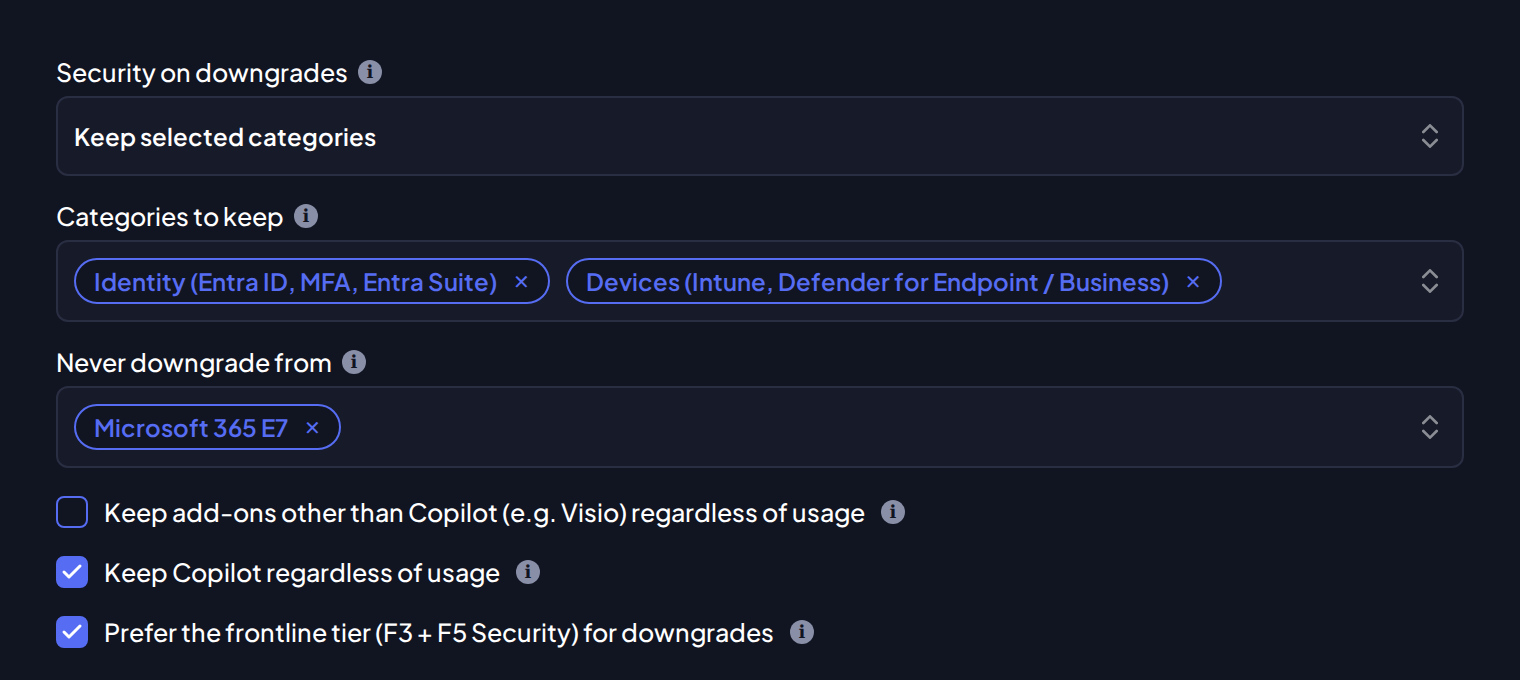
| Option | What it does |
|---|---|
| Keep features with evidence of use (default) | Chronom keeps a security feature when this user's own activity shows it in use. For example: a device managed by Intune keeps device protection, a mailbox used in the last 90 days keeps Defender for Office 365, an archive keeps archiving, and an admin role keeps Entra ID P2. If a cheaper license lacks such a feature, Chronom either doesn't offer that license or adds an add-on that gives the feature back. Other features may be dropped. |
| Never lose a security feature | Every security feature the user has today is kept, used or not. |
| Keep selected categories | Like "Never lose a security feature", but only for the categories you pick. Features in other categories follow "evidence of use". |
The Security recommendations switch in Settings > Remediation (on by default) also matters:
- With it off, Keep features with evidence of use doesn't check whether security features are used, so a feature the user relies on can be dropped. Only users with an admin role still keep Entra ID P2.
- Never lose a security feature keeps every security feature either way.
- Keep selected categories keeps the categories you pick either way, but with the switch off the other categories aren't checked.
A change to the switch applies from the next assessment.
Some protections work for your whole organization rather than per user, such as Entra ID P2 risk policies, Defender for Identity and Defender for Cloud Apps. Others can't be measured per user, such as Endpoint DLP. With the default option, Chronom doesn't count these as the user's own use, so they may be dropped. On a lower edition of the user's suite, Entra ID P1 stays while your organization uses Conditional Access.
The explanation names the most important dropped features, but it isn't a complete list. Microsoft's licensing terms expect users who benefit from these protections to be licensed for them. If you rely on them, choose Keep selected categories (for example Identity, Threat protection and Compliance) or Never lose a security feature.
Categories to keep (with "Keep selected categories"):
| Category | Includes |
|---|---|
| Identity | Entra ID P1 and P2, MFA, Entra Suite |
| Devices | Intune, Defender for Endpoint, Defender for Business |
| Email and documents | Defender for Office 365, Safe Documents |
| Threat protection | Defender for Identity, Defender for Cloud Apps, Defender XDR |
| Compliance | Purview: information protection, DLP, eDiscovery Premium, Audit Premium, insider risk, records management and more |
| Exchange Online Archiving | Exchange Online Archiving |
How Chronom keeps those features:
- If a cheaper license lacks a kept feature, Chronom recommends the cheaper license plus an add-on that gives the feature back. For example: E5 → F3 + F5 Security + Compliance.
- A recommendation is made only if it still saves money after paying for the add-on.
- If no add-on can give a kept feature back, that cheaper license isn't offered. Other options may still fit.
Microsoft sells Safe Documents only in E5-class licenses and in F5 Security + Compliance, not in F5 Security. So when you keep Email and documents and the target is F3, an E5 user moves to F3 + F5 Security + Compliance.
Safe Documents works only in the desktop Office apps, which F3 doesn't include. Unless the user has a separate Microsoft 365 Apps license, they pay for a feature they can't use. F5 Security already includes Defender for Office 365. If you don't also keep Compliance, you can move these users to F3 + F5 Security with a downgrade rule instead.
Never downgrade from
Pick the licenses Chronom should never move users off, such as Microsoft 365 E7. Users with one of these licenses keep it. Their other licenses, and every other user, are reviewed as usual.
There are two exceptions:
- A downgrade rule you add yourself still applies. Those recommendations show the caveat Overrides "Never downgrade from".
- If another license the user holds already includes the protected one, such as a protected E5 next to E7, Chronom still recommends removing the protected license (Redundant license).
Seats available for reassignment. Some users of a protected license may not be able to use what makes it more expensive. For example, an E7 user may have Copilot, Entra Suite and Agent 365 all turned off. The Seats available for reassignment panel on the Microsoft 365 Home page shows, for each protected license:
- how many such seats there are;
- their monthly cost;
- the unused features.
The panel doesn't name users. It appears only when there is at least one such seat. With several tenants, it shows the total across them. You could give those seats to people who will use the features.
These seats are reported only. They are never counted as savings.
Keep add-ons and Copilot regardless of usage
These are two separate checkboxes.
- Keep add-ons other than Copilot (e.g. Visio) regardless of usage. Visio is never downgraded because it looks unused. For example, Visio Plan 2 stays even if the desktop app was never used. Security add-ons such as E5 Security or F5 Security aren't covered by this setting. They follow Security on downgrades.
- Keep Copilot regardless of usage. Chronom never removes Copilot because it looks unused. Users with Copilot turned on are never moved to a license without it, unless your downgrade rule says so and Copilot isn't in use. So an E7 user with Copilot turned on stays on E7.
Without these settings, Chronom removes Copilot only when it is clearly unused: no activity for 90 days, and assigned for at least 90 days. If Chronom can't tell, Copilot stays.
Even with these settings:
- a separate Copilot license is still removed when the user's main license already includes Copilot;
- Project is always kept;
- Power BI is never judged on usage.
Prefer the frontline tier
By default, Chronom doesn't recommend a frontline (F) license to a user who works on a computer of their own, such as a Windows or Mac computer, unless they already have one. With Prefer the frontline tier (F3 + F5 Security) for downgrades turned on:
- That check is off.
- Frontline licenses your organization already uses are recommended ahead of E3 and other options, wherever they fit. These may be F1 rather than F3 + F5 Security.
- This setting doesn't introduce frontline licenses you don't use yet. To move users to F3 anyway, add a downgrade rule. The To license doesn't need to be one you already have.
- If a user uses desktop Office apps and the frontline license doesn't include them, the recommendation still goes ahead. It shows the caveat Uses desktop Office.
- Users who use desktop Outlook (or Mail for Mac) still aren't moved to an F3 mailbox. Only a downgrade rule moves them, with the caveat Uses desktop Office.
- Every other limit still applies, such as mailbox size and OneDrive storage (see Limits that always apply).
Microsoft's licensing terms allow a frontline (F) license only for a user whose main work device has a single screen smaller than 10.9 inches, or who shares their main work device with other frontline workers, during or across shifts. Chronom can't verify this. With this setting on, or with a downgrade rule to an F license, it skips its own check. Make sure every user who moves is eligible.
Downgrade Rules
Downgrade rules are the exact moves you want made. Each row is one rule, with the From licenses on the left and the To licenses on the right. Click + Add rule to add one.
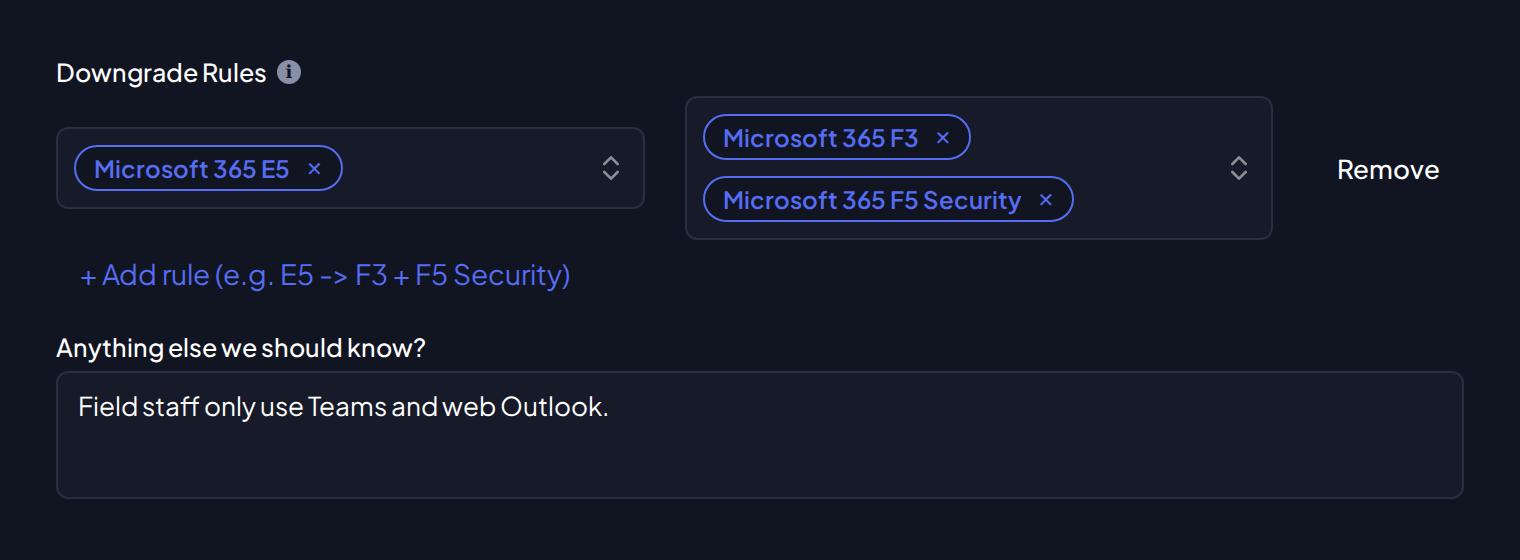
- Who it applies to. A user who holds every From license, including users with no activity. If several rules match a user, the rule with the most From licenses wins. On a tie, the rule listed first wins. A user who holds two licenses where one already includes the other, such as E3 and E5, isn't matched. Chronom recommends removing the covered license instead (Redundant license).
- What it replaces. Only the From licenses. The user's other licenses are reviewed as usual, in the same recommendation, unless a role-based rule or team pattern keeps them.
- It overrides the other settings. A rule takes precedence over Security on downgrades, the frontline preference, and the patterns Chronom learned from your organization. If the move drops security features, the explanation says so.
- It overrides "Never downgrade from" and role-based rules, and says so. The recommendation shows the caveat Overrides "Never downgrade from" or Overrides a role rule.
- Limits still apply. If one of the limits that always apply blocks the move, for example a mailbox too large for F3, Chronom recommends the best alternative instead, or keeps the user. The recommendation explains which limit blocked your rule. Copilot that is in use also blocks a rule.
- It must save money. If the To licenses cost as much as or more than the From licenses for a user, that user keeps their licenses.
- New licenses are left alone. A license assigned or changed in the last 30 days is kept.
A rule is ignored, and those users are reviewed as usual, if one of its licenses can't be matched to your tenant (see How license names are matched), or if a To license can't be bought:
- it has no price;
- your subscription to it has expired or been suspended;
- it isn't sold in your region;
- it's an add-on listed without the license it requires.
Anything else we should know?
Free text that Chronom takes into account when it weighs borderline cases and writes the explanations. It is guidance, not a rule. If something must always happen, use one of the settings above.
How license names are matched
Never downgrade from, Allowed SKUs and Downgrade Rules are saved by license name. You can pick a name from the list or type one. Chronom matches each name to each tenant's licenses separately, by display name, product code (part number) or ID. A product code you type matches only in a tenant that has or subscribes to that license, so if you manage several tenants, pick names from the list.
If a name can't be matched:
- Never downgrade from skips it, so that license isn't protected.
- Downgrade Rules ignores the rule.
- Allowed SKUs never allows it, so a typo can't let through a license you didn't allow. If none of its names can be matched in a tenant, Chronom recommends no downgrades in that tenant.
Chronom doesn't warn you when it can't match a license name or a role, or when it ignores a rule. After the next assessment, check in Inventory (Microsoft 365 view):
- Expand a user your downgrade rule should move. The explanation says the move follows your downgrade rule.
- Expand a user with a protected license. No recommendation moves them off it, except one with the caveat Overrides "Never downgrade from" or a Redundant license recommendation.
Which setting wins
From strongest to weakest:
- Limits that always apply, a license assigned or changed in the last 30 days, and overlapping licenses. A user who holds two licenses where one already includes the other (for example E5 and E7) gets only a Redundant license recommendation to remove the covered one. No other setting applies to them, not even your downgrade rules or Never downgrade from. Once the covered license is removed, the next assessment reviews them as usual.
- Your downgrade rules.
- Never downgrade from, role-based rules, and your team patterns (see "Team pattern" under Why wasn't a user downgraded?).
- Security on downgrades, the frontline preference, the keep add-ons and keep Copilot settings, and Allowed SKUs.
- Usage (the default).
"Anything else we should know?", Licensing Approach, Standardizing On, Contract Terms and Preferred Term are guidance only and don't sit in this order.
Limits that always apply
Some of these are Microsoft's own limits. Others are rules Chronom adds so a move doesn't break something the user relies on. No setting overrides them, except where a row says so.
| Limit | What Chronom does |
|---|---|
| Mailbox size | Mailboxes are limited to 2 GB on F3 (Exchange Online Kiosk), 50 GB on Exchange Online Plan 1 and 100 GB on Plan 2. A mailbox at or above 90% of a smaller limit is not moved to it. |
| Mail data | A user with 100 MB or more of mail is never moved to a license without a mailbox. |
| OneDrive | A user with any OneDrive data is never moved to a license without OneDrive. Data at or above 90% of a smaller limit, or above the new license's limit, doesn't fit. |
| Unknown size | If Microsoft's reports don't show a mailbox or OneDrive size, Chronom never assumes it's empty. The user isn't moved to a license with a smaller limit, or to one without a mailbox or OneDrive. |
| Desktop Office | A user who uses desktop Office apps is only moved to a license that includes them. Exceptions: with Prefer the frontline tier, and for your downgrade rules, the move goes ahead with the caveat Uses desktop Office. Desktop Outlook with an F3 mailbox is covered under Mail apps. |
| Business licenses | Business Basic, Standard and Premium are capped at 300 seats, for downgrade rules too. |
| Archive | An archive mailbox needs a license with room for it. F3 has no archive. |
| Teams Phone | Users with a Microsoft Calling Plan or Communications Credits keep Teams Phone, so their phone number keeps working. See the warning below for other phone setups. |
| Mail apps | Users who use desktop Outlook (or Mail for Mac) aren't moved to an F3 mailbox, even with Prefer the frontline tier. A downgrade rule can still move them, with the caveat Uses desktop Office. Users who connect over IMAP, POP or SMTP are never moved to an F3 mailbox, not even by a downgrade rule. Microsoft doesn't support IMAP on F3. It does support POP and SMTP, but Chronom keeps those users off F3 too. |
| Copilot | Copilot that is in use is never removed. |
| Windows | Windows users keep Windows Enterprise, Autopatch and Universal Print. |
| Apps in use | A workload the user actively uses is kept: mail, Teams, SharePoint, OneDrive, Viva Engage, and Office on the web or mobile. |
| F3 + Exchange Online Plan 1 or 2 | Never recommended, also not through a downgrade rule, because Microsoft doesn't document the combination. A mailbox too large for F3 still keeps the user off F3. |
Chronom can't see phone service that comes without a Microsoft Calling Plan, such as Direct Routing, Operator Connect, Teams Phone Mobile or Shared Calling. A move off a license that includes Teams Phone, for example E5 to E3 or to F3 + F5 Security, can remove the user's Teams Phone and stop their number working. This includes moves from your downgrade rules. Before you apply such moves, check in the Teams admin center who has a phone number. Keep those users on their license, or add a Teams Phone license with the move.
Chronom doesn't check whether a mailbox is on Litigation Hold or an eDiscovery hold. F3, Office 365 E1, Business Basic, Business Standard and Exchange Online Plan 1 don't include Litigation Hold unless you add Exchange Online Archiving. Check the user's holds before you apply a move to one of these licenses.
To keep hold rights on every downgrade, keep the Exchange Online Archiving category under Security on downgrades. Chronom then adds Exchange Online Archiving back, or doesn't offer that license. Your downgrade rules override this.
What you see
- Home (Microsoft 365 view): savings, and the Seats available for reassignment panel when a license you protect with Never downgrade from has such seats.
- Inventory (Microsoft 365 view): the recommendation for each user. Expand a user to see:
- the recommended license and any add-on to buy with it;
- the monthly saving, after the cost of any add-on;
- an explanation in plain words;
- Downgrade Caveats, when they apply.
| Caveat | Meaning |
|---|---|
| Uses desktop Office | The user uses desktop Office apps that the new license doesn't include, or desktop Outlook with an F3 mailbox. After the change, unlicensed desktop apps can only view and print files, and desktop Outlook can't connect to an F3 mailbox, so the user works in Office on the web or mobile. Check that the user can work this way before you apply the change. |
| Overrides a role rule | Your downgrade rule moved a user that a role-based rule would have kept. |
| Overrides "Never downgrade from" | Your downgrade rule moved a user off a license you protected. |
Microsoft usually lets you remove seats from an annual subscription only within seven days of buying or renewing it. Otherwise the reduction takes effect at renewal. New licenses you buy for a move are charged from the day you buy them, so plan moves around your renewal date.
Why wasn't a user downgraded?
Chronom doesn't explain on screen why a license was kept. Use this list to find the cause.
| Reason | Details |
|---|---|
| Recently licensed | A license was assigned or changed in the last 30 days. |
| Overlapping licenses | The user holds two suites where one covers the other, such as E5 and E7. Chronom recommends removing the redundant one instead (Redundant license). |
| No usage at all | Users with no Microsoft 365 activity in the last 90 days keep their current license, except F3 users, who may move to F1. Your downgrade rules still apply to them. |
| Team pattern | Most of the user's team (by title, department and so on) gets this license through a dynamic group. Chronom treats that as your organization's rule. |
| Role-based rule | A role-based rule in your Licensing Strategy matches the user. |
| Role-based rules in a small tenant | No main license is assigned to at least 20 users in the tenant, so Chronom can't match your roles there. While role-based rules are set, it keeps every user in that tenant. |
| Your downgrade rule | The rule's To licenses wouldn't save money for this user. If the rule wasn't used at all, check its names (see How license names are matched) and the list under Downgrade Rules. A limit that always applies, or Copilot in use, can also block a rule. |
| Never downgrade from | The user holds a protected license. Check Seats available for reassignment instead. |
| Copilot | Copilot is in use, its usage can't be confirmed, or Keep Copilot regardless of usage is on. |
| Security kept | No add-on can give back a kept security feature, or the result would cost more. |
| A limit that always applies | See Limits that always apply. |
| No cheaper option | Nothing cheaper serves this user (see What Chronom can recommend). |
| Allowed SKUs | Allowed SKUs is set, and the cheaper license or an add-on it needs isn't on the list, or none of the names on the list matched a license. |
Related
- License Optimization: savings and waste per license
- Complete KYC verification
- Microsoft 365 Integration: setup and permissions