M365 License Optimization
The Microsoft Licenses page in Chronom provides a comprehensive view of your organization's Microsoft 365 license portfolio, helping you identify waste, optimize assignments, and reduce costs.
Accessing the License Page
Navigate to Inventory → Microsoft Licenses from the top navigation bar.
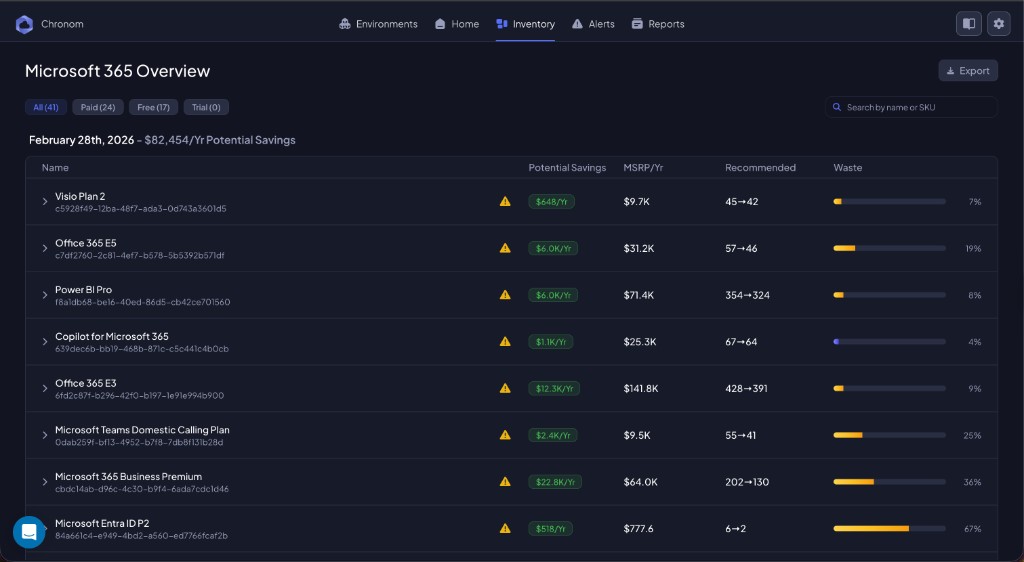
Understanding the Dashboard
Filter Tabs
At the top of the page, filter tabs let you scope the view:
| Tab | Description |
|---|---|
| All | Every M365 license in your tenant |
| Paid | Only licenses with a cost (e.g. Microsoft 365 E3, E5) |
| Free | Complimentary or included licenses |
| Trial | Licenses in a trial period |
Each tab shows a count of matching licenses so you can quickly see the distribution.
Search
Use the search bar to find specific licenses by name or SKU.
License Table
Each row in the table represents a license type and shows:
| Column | Description |
|---|---|
| Name | The license display name (e.g. Microsoft 365 E5) |
| Potential Savings | Estimated monthly or annual savings if recommendations are followed |
| MSRP/Year | The list price per user per year for this license |
| Recommended | Number of actionable recommendations for this license |
| Waste | A percentage bar showing how much of this license's spend is wasted (assigned but unused) |
Working with License Details
Click the expand arrow on any license row to see detailed user-level data:
- Assigned users - Which users hold this license
- Usage status - Whether each user is actively using the license features
- Recommendations - Specific actions such as:
- Remove - User has not used the license in the analysis period
- Downgrade - User's usage pattern matches a lower-tier license
- Reassign - License could be better utilized by another user or team
Optimization Workflow
- Sort by Waste - Click the Waste column to surface the most wasteful licenses first
- Review Recommendations - Expand high-waste licenses and review the per-user recommendations
- Take Action - Work with your IT admin to implement the recommended changes in the Microsoft 365 Admin Center
- Monitor Progress - Chronom rescans on your configured schedule, so savings will be reflected in subsequent scans
Focus on Paid licenses with high Waste percentages first - these represent the quickest wins for cost reduction.
Common Scenarios
Unused E5 Licenses
Users assigned Microsoft 365 E5 who only use basic email and calendar features. Chronom recommends downgrading to E3 or Business Basic, potentially saving hundreds of dollars per user per year.
Departed Employee Licenses
Licenses still assigned to users who have left the organization. Chronom flags these for removal.
Trial License Cleanup
Trial licenses that have expired but are still assigned. Removing these keeps your license inventory clean.
Related
- M365 Integration Overview - Setup and prerequisites